We’re experiencing issues with our datasets and search. We apologise for any inconvenience while we work to fix this.


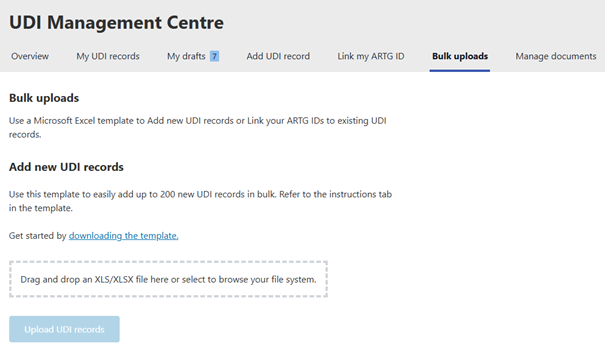
You can submit up to 200 UDI records at once using the Australian UDI Bulk Upload Template. This method suits users with a low to medium number of UDI records.
Tips:
Before submitting UDI records to AusUDID Production:
- gather all data before you begin
- use the Australian UDI Data Dictionary to understand data elements and rules
- test your submissions in the AusUDID Pre-Production environment before submitting them to AusUDID Production.
About the worksheets
The template contains several worksheets. Each worksheet captures a specific group of data elements for your UDI records:
- AusUDID - captures the main characteristics of the device
- Sponsor - captures sponsor-specific data
- Secondary Device Identifiers - captures additional UDI-Dls issued by alternate Issuing Agencies, if any exist
- Previous Identifiers - captures previous UDI-Dls used for the device, if any exist
- Clinical Sizes - captures clinical size information
- Storage and Handling - captures storage and handling information
- Package Identifiers - captures packaging information
- Sterilisation - captures sterilisation methods when the device is supplied non-sterile
- Supporting Documents - captures URLs for documents such as Patient Information Leaflets (PILs) and Instructions for Use (IFUs).
You must provide all mandatory data, and any conditionally mandatory data relevant for your device. You can choose to include optional data. We strongly encourage users to submit optional data to make the UDI record useful for end users, such as healthcare.
Downloading the template
You can download the template from the AusUDID on the Australian UDI Bulk Upload Template page.
Note:
The template is subject to change, and the AusUDID will check that you are using the most current version. We recommend you download the template each time you use it, to ensure you have the most current version.
Completing the template
Worksheet requirements
AusUDID worksheet (Mandatory)
- Enter one device per row.
- Each device must have a unique Primary DI.
- Related worksheets must reference the same Primary DI.
- Primary DIs that appear only in later worksheets will be ignored.
Sponsor worksheet (Mandatory for sponsors; not permitted for manufacturers)
- Only sponsors, or sponsor/manufacturer organisations, may complete this worksheet.
- Enter the ARTG ID for each device and match it to the Primary DI.
Secondary Identifiers worksheet (Optional)
Complete this worksheet only if you are providing Secondary DIs.
- Enter each Secondary DI on a separate row.
- Include the related Primary DI for each row.
- Leave the worksheet empty if there are no Secondary DIs.
Previous Identifiers worksheet (Optional)
Complete this worksheet only if you are providing Previous DIs.
- Enter each Previous DI on a separate row.
- Include the related Primary DI.
- Only one previous identifier is allowed per Primary DI.
- Leave the worksheet empty if unused.
Clinical Sizes worksheet (Optional)
Complete this worksheet only if you are providing clinical sizes.
- Enter each clinical size variation on a separate row.
- Include the related Primary DI.
- Leave the worksheet empty if no variations exist.
Storage and Handling worksheet (Optional)
Complete this worksheet only if the device(s) have storage and handling requirements.
- Enter each storage and handling requirement on a separate row.
- Include the related Primary DI.
- Leave the worksheet empty if no storage and handling requirements exist.
Package Identifiers worksheet (Optional)
Complete this worksheet only if the device has additional levels of packaging.
- Enter each Package DI on a separate row.
- Include the related Primary DI.
- Leave the worksheet empty if no Package DIs exist.
Sterilisation worksheet (Mandatory when required)
Complete this worksheet only if the device requires sterilisation before use.
- Record each sterilisation method on a separate row.
- Include the related Primary DI.
- Leave the worksheet empty if the device does not require sterilisation.
Supporting Documents worksheet (Optional)
Complete this worksheet only if you are providing supporting documents.
- Only sponsors, or sponsor/manufacturer organisations, may complete this worksheet.
- Enter URLs for documents such as PILs or IFUs.
- You must use the AusUDID portal to upload PDFs.
Editing rules
The template has specific rules.
- Do not add or remove template columns.
- Leave optional fields blank if they do not apply. Do not enter ‘NA’ or ‘N/A’.
- Use the date format dd/mm/yyyy.
- If you change a Primary DI in the AusUDID worksheet, update it in every other worksheet.
- Primary DIs that do not appear in the AusUDID worksheet but are in other worksheets will be ignored without an error message.
Requirements for uploading the template
There are several requirements for uploading the template.
Access requirements
To upload the template, you must:
- have an active TBS user account
- hold the Submitter TBS system role.
Organisation requirements
Manufacturer organisations
Manufacturers cannot fill out the Sponsor worksheet. Sponsor fields can only be completed by a sponsor.
Manufacturers may complete all other worksheets.
Sponsor organisations
Sponsors must complete the entire template, including the Sponsor worksheet.
Sponsor/manufacturer organisations
Organisations that act as both sponsor and manufacturer may upload the template without the Sponsor worksheet completed. However, UDI records without sponsor details are not public until the ARTG ID is added.
Sponsors can add missing ARTG information later by:
- using the Australian UDI Bulk ARTG to UDI Link template, or
- editing the UDI record in the AusUDID portal.
Note
Records without ARTG IDs are visible only to logged in sponsors and manufacturers.
Records with ARTG IDs are visible to all AusUDID users, including the public.
Uploading the template
You must upload the completed template through the AusUDID portal. To upload the template:
- Log into the AusUDID.
- Navigate to the Bulk uploads tab.