

TGA Business Services: how to use the portal
Set up your account and understand the different system roles.
The TGA Business Services (TBS) system allows for different structures and relationships to be developed.
The type of access structure that sponsors set up in TBS will determine who can see Clinical Trial Notification (CTN) form information. You can control the visibility of CTN information within your organisation by choosing the appropriate access framework currently available on the TBS system.
The TGA Business Services portal allows industry to manage some therapeutic good registration applications, and view and cancel their current entries on the Australian Register of Therapeutic Goods (ARTG). Sponsors are able to view, download and print ARTG Register entries for their products and generate certificates online.
Clients can also keep up to date with the latest TGA-wide and Industry specific news - directly from the portal.
To apply for access to TGA Business Services see TGA Business services: getting started with the TGA.
For Sponsors who frequently report adverse events to the TGA, the TGA Business Services portal also provides registered users with access to the Adverse Event Management System (AEMS). Refer to the specific AEMS guidance for Sponsors for further details.
General questions and answers
Watch our video: Welcome to the TGA Business Services site.
If you are within the application section, you will need to return to your dashboard before you can sign out.
Click Back to Business Portal in the menu on the left hand side.
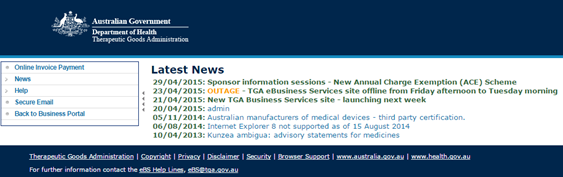
Then to sign out:
- Click on your name on the top right hand side of the screen. A menu will be displayed.
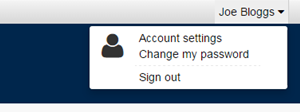
- Select Sign out
- Close your browser including all tabs to complete the sign out process.
- Click on your name on the top right hand side of the screen. A menu will be displayed.
Roles: what each user can do
Individuals can have multiple system roles. For example, an Administrator with Financial access can do all of the tasks for both roles.
| TASK/ACCESS | DRAFTER | SUBMITTER | FINANCIAL | ADMINISTRATOR1 |
|---|---|---|---|---|
| Dashboard | Yes 1 | Yes 1 | Yes 1 | Yes 1 |
| News | Yes 1 | Yes 1 | Yes 1 | Yes 1 |
| Interaction history | Yes | Yes | Yes | Yes |
| View organisation contact | Yes | Yes | Yes | Yes |
| View organisation connections | Yes | Yes | Yes | Yes |
| Update my contact details | Yes | Yes | Yes | Yes |
| Search for organisation contact | Yes | Yes | Yes | Yes |
| Reset my password | Yes | Yes | Yes | Yes Also resets other users' passwords within their organisation. |
| View drafts and submissions | Yes 2 | Yes 2 | No | No |
Create new:
| No | No | No | Yes |
| Activate/deactivate organisation contact | No | No | No | Yes |
| Update organisation details | No | No | No | Yes |
| Assign/modify roles | No | No | No | Yes 3 |
| View invoices and make payments | No | No | Yes | No |
- Customised for each role
- If there are multiple Drafters/Submitters for a single TBS Client ID, each of these people will be able to view the drafts/submissions of their colleagues.
- Administrators cannot assign the Administrator role to another contact within their organisation.