Searching for UDI records
You can search for your UDI records through:
- My UDI records under the UDI Management Centre
- the Devices tab in the AusUDID menu bar.

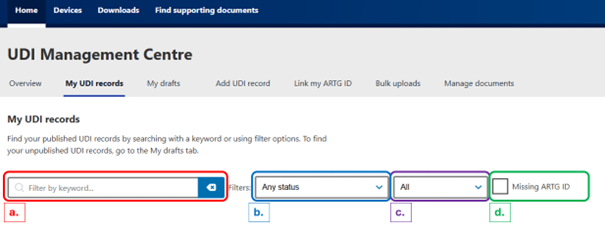
Figure 1: 'My UDI records' under the UDI Management Centre
Screenshot of the UDI Management Centre with showing the menu tab with the 'My UDI records' tab selected.
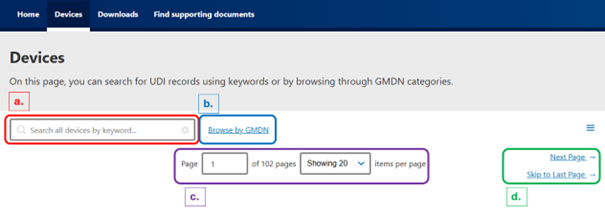
Figure 2: 'Devices' tab in the AusUDID menu bar
Screenshot of the 'Devices' tab under the AusUDID menu bar.
Searching UDI records in the UDI Management Centre
You can view your organisations UDI records in the UDI Management Centre:
- UDI records published by your organisation appear under My UDI records
- UDI records drafted by your organisation, or UDI records with a future publication date, appear under My drafts.
Note
You must be logged into the AusUDID under your organisation to view your organisation’s UDI records.
To view your organisations published UDI records:
- log into the AusUDID
- select the My UDI records tab.
- search for a UDI record and filter your searches using:
- keywords such as brand name, model or version, or manufacturer, ARTG ID or Primary DI.
- commercial distribution status.
- whether the UDI record is in the Grace Period.
- whether the UDI record has an ARTG ID.
Figure 3: My UDI records filter options
A screenshot of 'My UDI Records', highlighting:
- filter by keyword
- filter by commercial distribution status
- filter by grace period
- filter by missing ARTG.
Searching UDI records in the Devices tab
- Select the UDI record from the search results to view the UDI record in detail.
Searching UDI records in the Devices tab
You can search all published UDI records in the AusUDID using the Devices tab in the AusUDID menu bar.
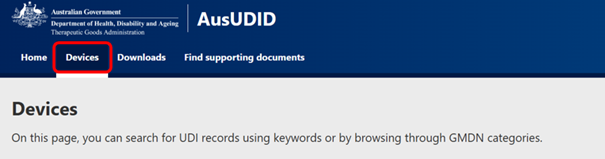
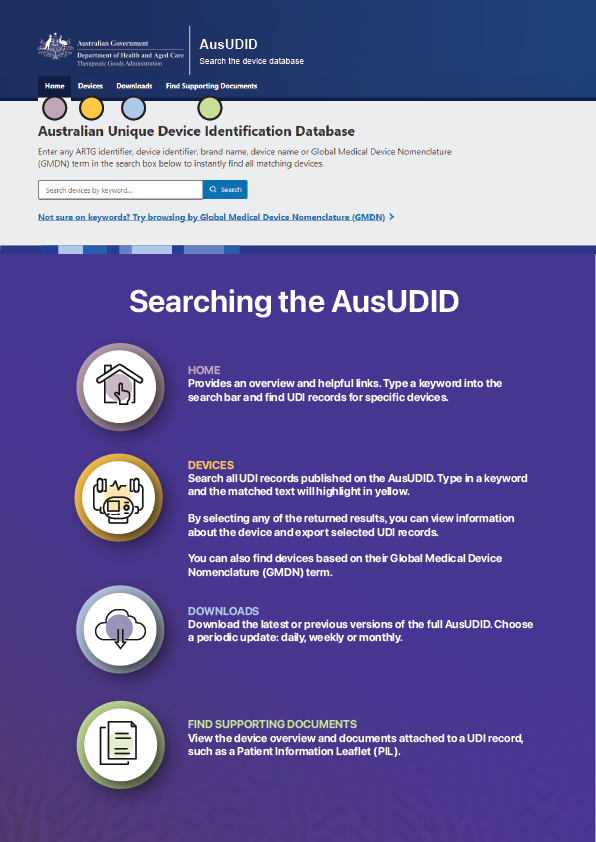
Figure 4: Searching the AusUDID
Screenshot of the AusUDID website showing the search page and an overview of how to search, download data, and access supporting documents.
Figure 4: Searching the AusUDID continued
Note
You do not need to be be logged into the AusUDID to view all published UDI records.
To search in the Devices tab:
- Navigate to the Devices tab in the AusUDID menu bar
- Search for a UDI record:
- using keywords such as brand name, model or version, or manufacturer
- using the browse by GMDN feature
- navigating between pages, and increasing or decreasing the number of UDI records per page
- navigating to the next, last or first page.
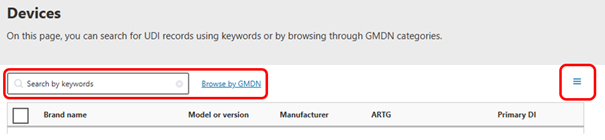
Figure 5: Devices filter options
A screenshot of 'Devices' tab, highlighting:
- the search bar
- the browse by GMDN button
- the page filters
- the page navigation options.
Figure 5: Devices filter options continued
Select the UDI record from the search results to view the UDI record in detail.
Viewing UDI records
When you select a UDI record, you can view all information provided by a sponsor or manufacturer for that device.
Note
Not all UDI records will contain all data, as some data is optional or conditionally mandatory.
Information included in a UDI record includes:
- Device overview - a summary of the device
- Device identifiers - all identifiers for the device, including the Primary DI
- Device information - brand name, model or version, and device description
- Manufacturing details - the manufacturer associated with the device
- Clinical characteristics - MRI safety status, sterility details, clinical size, storage and handling
- Production information - production identifier types on the label, such as batch or serial number
- ARTG details - ARTG name and ID, sponsor, device class and product name
- Packaging and catalogue information - packaging configurations, Package DIs, catalogue numbers and sponsor commercial distribution end dates
- Supporting documents - documents included such as Patient Information Leaflets and Instructions for Use
- History - history of the UDI record, including creation date, updates or corrections.
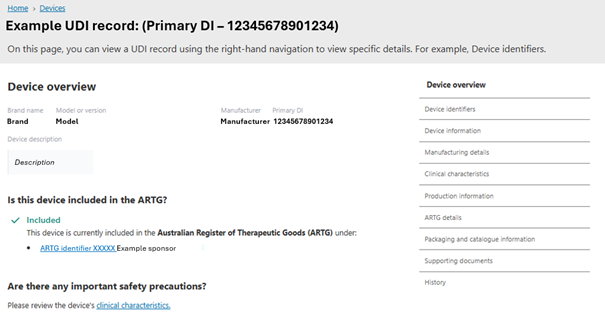
Figure 6: Example UDI record
Screenshot of an example UDI record in the AusUDID showing device overview details, ARTG inclusion status, and a right‑hand menu of record sections.
Device history
Device history
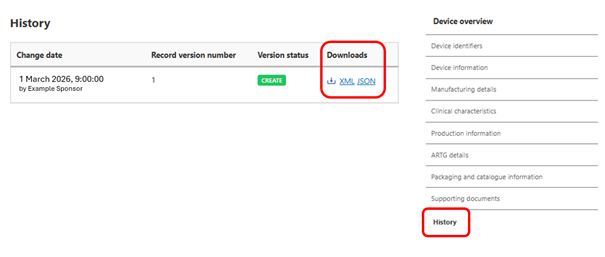
You can view the history of a UDI record by selecting the History tab in the right-hand side menu.
The History tab shows changes made to a UDI record, including whether the change was a correction or an update. You can download current and previous versions of the UDI record using the downloads option in the History tab.
Supporting documents
You can view any supporting documents included on a UDI record by selecting the Supporting documents tab in the right-hand side menu.
Supporting documents may include Patient Information Leaflets (PILs) or Instructions for Use (IFUs).
Downloading UDI records
You can download AusUDID data. You can download:
- individual UDI records
- search results
- the full AusUDID.
Downloading individual UDI records
To download an individual UDI record:
- navigate to the UDI record
- select the History tab
- download the UDI record.
Figure 7: Downloading an individual UDI record
Screenshot of the AusUDID History section showing a UDI record version table, with download links for XML and JSON files highlighted and the History menu item selected.
Downloading search results
To download search results:
- perform a search
- select the 3 line menu button
- download in your preferred format.
Figure 8: Downloading search results
A screenshot of AusUDID search bar with the 3 line menu button highlighted.
Downloading the entire AusUDID
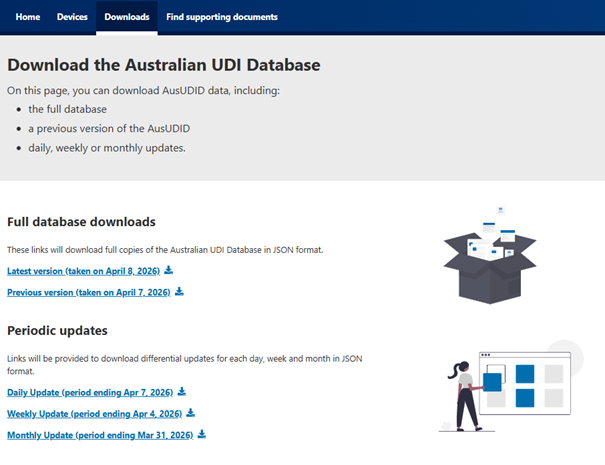
You can download AusUDID data from the AusUDID downloads page.
You can download this data as:
- the full database
- a previous version of the database, or
- daily, weekly or monthly updates.
Figure 9: AusUDID downloads page
Screenshot of the AusUDID Downloads page showing links to download the full database, previous versions, and daily, weekly or monthly updates.
Page history
Original publication